Sending Mass Emails
This document is not indexed by search engines. See also:
-
Admin-tutorial for basic functions of the system admin, like manually register users.
-
Country Admin for more advanced options to manage sessions
Email-tab
There is also the email tab. It gives you several options to select emails from:
-
Mailinglists, select one or more, as available in our system
-
Filter sessions, set the dates and click on filter sessions
-
Select Sessions, you can hold the CTRL key and select sessions with the mouse to select multiple sessions
-
Export address CSV, instead of sending an email through the system, you can also export the data to a CSV spreadsheet.
-
Enter emails separated by comma. Copy / paste from an existing list, there should be no new lines in the list. Make sure all emails are valid, as mistakes will not properly indicated and may stop the process.
Of course, you can choose any of the above options, or combine several, but generally speaking you are likely to use only one of the options. For example, you maybe on location, and anything regarding the Darshans changes, so you want to inform the people of a given session, in this case select only the sessions (3) and best filter them by date (2), so you can find them more easily.
For the unsubscribe link, we have this code: unsubscribeURL so this should be in the link, without http:// !! (Word always adds this, so always check this before sending out!) In case you forget to do this, our system will automatically add an unsubcribe link in 3 languages (English, German, French) by default. Here you have a chance to determine the look and feel for thisn option yourself. It might be usefull, before sending a mass-email, to send out a single mail to yourself first, so enter your own email, before selecting sessions or mailing-lists for a test. When you are satisfied, send out all.
NEW:
After determening the number per hour (usually 1000 is safe), and you click on send, it will send 1000 per hour spread out equally during that time!
You will be automatically directed to a page showing you the progress report. There are also buttons to stop or pause the sending. You can always access this page if you click on email and then on mailing. From this page you can access the email tab by clicking on email. After the system has switched to the progress tab, there is no need to keep this tab / window open.
For example, if you have 10.000 emails to send, you can enter all the 10.000 email addresses into the recipient field, line separated or comma separated, press send, and the system will send the 10.000 emails at a rate of 1000 per hour. You can close your computer, and open it after 10 hours, click on email and the mailing, to see the progress.
If you want to first send a test mail to yourself, in order to get back to the email tab, go back the history two times, and you will have to re-format it, and maybe add again, the subject line and reply-to.
Sender Address
You can chose a sender address. Regarding choosing a sender, here comes the issue:
We have been white-labeling our domain from where we send emails, which is @mmdarshan.de. We can make any number of emails or aliases under this domain, like any-location@mmdarshan.de , and then redirect it to the email you want, for example MMTeam.mylocation@gmail.com , or info@mydomain.com .
This white labeling is very important, so that emails arrive properly, and we have only recently succeeded in doing it, so this works well. The email compose window makes HTML emails, and you can prepare in word or take it from a website, so you can also use images, and you should remote link images.
The protocols that are important in this context are called SPF and DKIM . While DKIM is taken care of by Sendgrid itself, the email address, or a whole domain for email addresses have been first given authorization that Sendgrid is a valid sender for the email address. This has been done by us for the domain mmdarshan.de. If you do not enter the correct values and authorization from sendgrid into your email domain SPF, you will be blocked by many email providers and downgraded or regarded as SPAM by others. Test your configuration by sending an email here . Make sure you achieve a high value. For example using a non authorized Reply-to will also downgrade your email. Using only HTML and not also text will also lower your score.
User Import
We do not recommend this function, it is complicated, and not in alignment with the GDPR rules which are now in-build into our system. It is mentioned here for completeness
There is still a function to import old mailing lists, and make everybody automatically a user, which is not in any menu or link, it is here http://registration.mothermeera.com/admin/userimport and expects a comma separated list, you have to paste into the field.
We initially used this as a way to send out mass-emails, following the process described above, selecting then the mailing-list in the email tab. But we do not recommend this process any more for three reasons:
-
You end up sending the double amount of emails, as you first send an import confirmation, and then send out the invitation.
-
People receive two emails, which is confusing.
-
People are being send a password to login. In other words, we do not give them the option to choose a password right from the beginning.
Composing
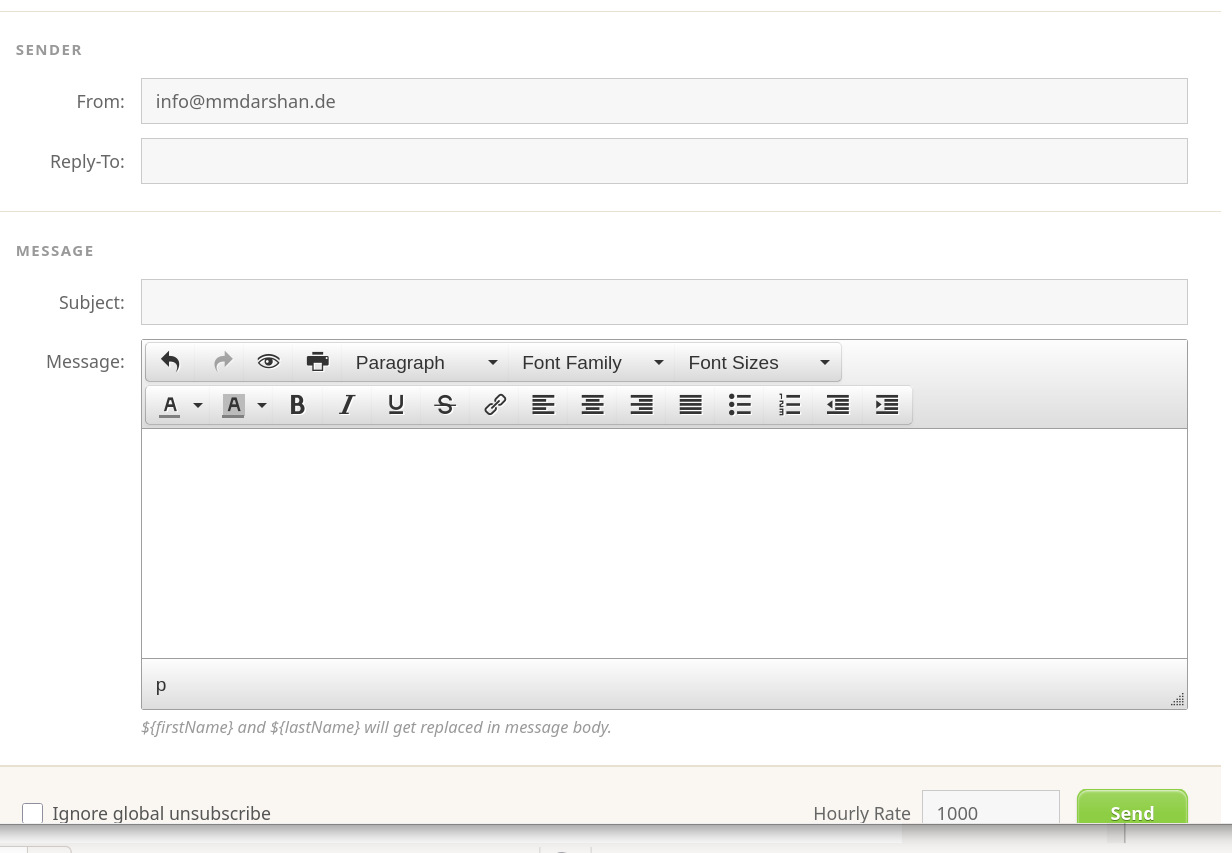
There is a composition window, which has some formatting options, but these are very limited. For example, you cannot add backgrounds, tables etc. So we recommend to use a different program for formatting your text, for example an mail client (like Thunderbird) or a Word like program. Then select the whole text body and copy / paste it into the above message window. Be aware to check that for the unsubscribe link there is no http:// or https:// prefix as Word does this usually for all links. You can change this in the message window (above)
Reformatting
You will probably have to check spacing and letter size. Before you start correcting, press the “Filter Sessions” button, just to see how it actually comes out. Then start correcting, removing extra spaces, and also check the letter size (you may universally use a fixed letter size).
There is a little preview symbol (an eye) for you to see how it actually looks, but use it only after you did the above. Now send an email to yourself, to test it.
After that go back in browser history two steps, and then - unfortunately - have to repeat the reformatting again, the select the mailinglist(s) you want to send it to, and viola, there you go.